
Teamup Ticker
Troubleshooting: Can't log into your Teamup account
If you're having trouble logging into your Teamup user account, here are some troubleshooting steps:
- Do you need to log in? If you're not used to logging in to access the calendar, you may have shareable link access to the calendar and not be required to log into a user account at all. See what to check to tell if you have account-based access or not.
- Check for typos. Double-check that you have the correct spelling of your email address and password in the login form. In many cases, a simple typo can cause a log-in issue.
-
Turn off your password manager. Some password managers may replace your email address with your name automatically, or otherwise adjust what you’ve entered in the login form. Or they may have the wrong information saved, such as an old email address or mistyped password.
-
Try turning off any password managers and manually type in your email and password. You may also need to disable autofill options in your browser.
-
- Email checks
- If you have numerous email addresses, be sure you are logging into the email associated with your Teamup account.
- Check if your email may be listed as the secondary email address on someone else's user account.
- To update the email address associated with your Teamup Account follow the instructions here.
- Browser checks
- Clear your browser's cache, then restart the browser and try logging in again.
- If you have any browser extensions installed, disable them and try again.
- Try logging in using a different browser, or try logging in on the Teamup app (or vice versa).
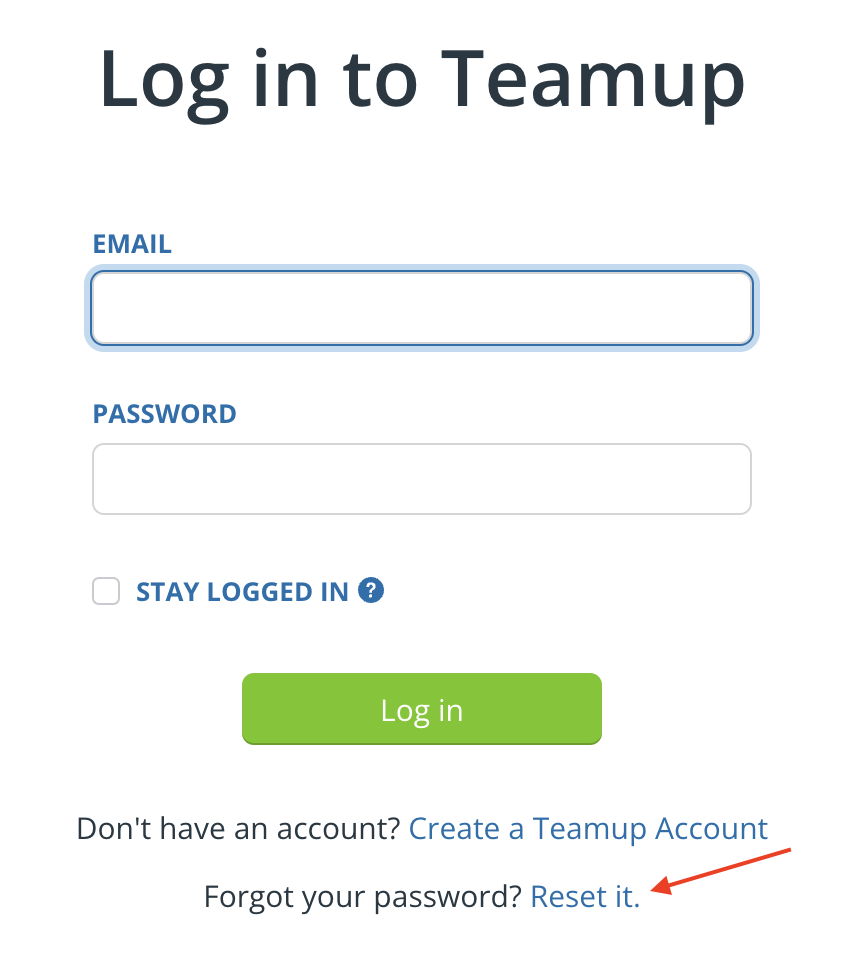
- Reset your user account password by selecting Reset Password at the bottom of the account login screen.
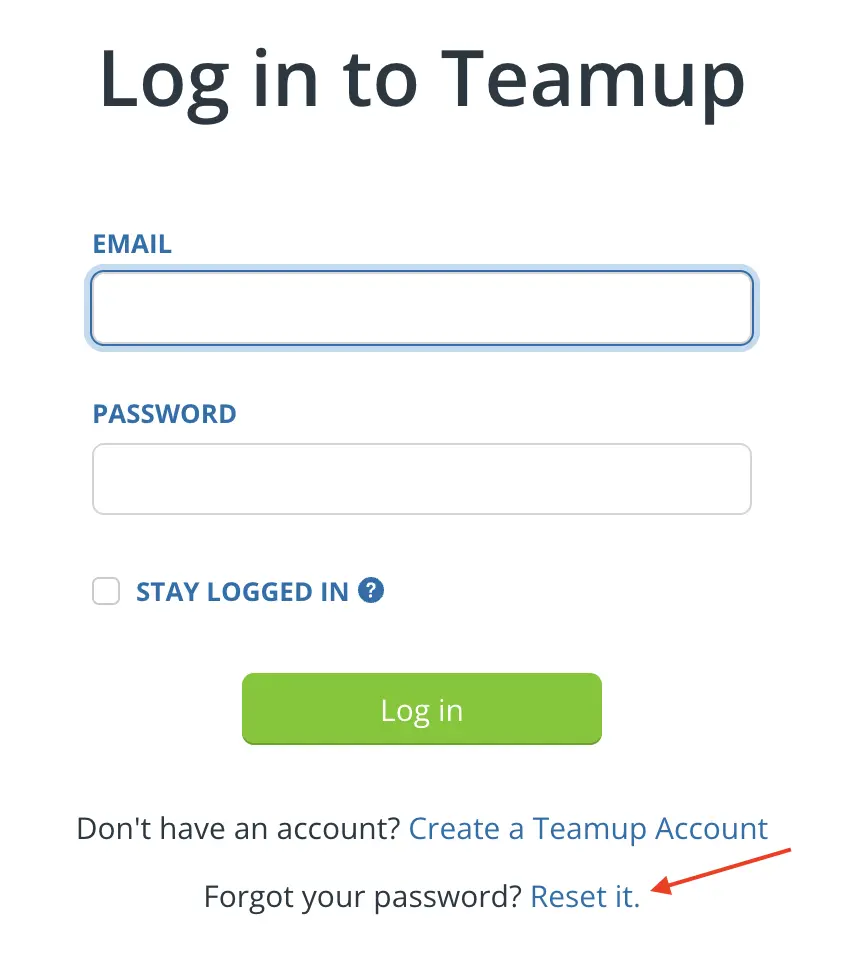
- If you are not receiving the reset password email, check your spam inbox as the emails can end up there.
- Double-check that you have the correct spelling of your email address in the reset password form, as well.
We know it's very frustrating to get stuck when you are trying to log in and access your calendar. We're here to help. For more help, you can email our support team. Note that we'll need you to go through these troubleshooting steps to identify the issue, so it's a good idea to go ahead with them before contacting us.