
Teamup Ticker
How to clean up your dashboard
The calendar dashboard is your central location for all the Teamup calendars you've created or have access to. The dashboard is accessible from a browser and from Teamup mobile apps, and will stay synced between devices.
Multiple calendars on your dashboard
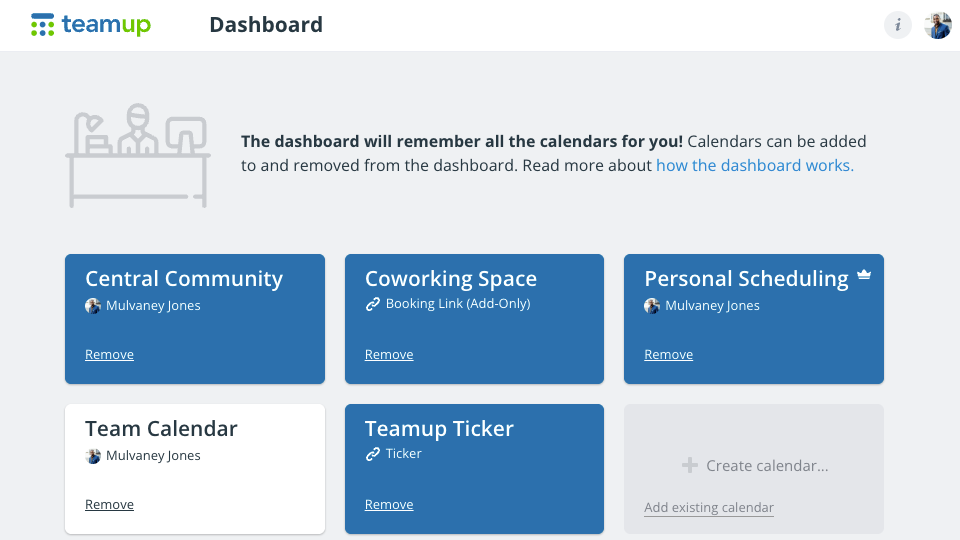
You can have access to multiple calendars on your dashboard. Each calendar tile on a dashboard shows the calendar's title as well as the user name (with an avatar for user account access, or with a link icon for shareable calendar links).
You can go to your dashboard to quickly switch between different calendars.
- If you have calendars on your dashboard that you no longer need access to, hover over the calendar tile and click Remove. Doing so will remove your access to that calendar but will not cancel a calendar's subscription, remove other users from the calendar, or delete the calendar itself. More details here.
- If you are the admin and want to delete the calendar (rather than just remove it from your dashboard), here's what to do.
- If you have organization-wide permissions or are the only admin for a calendar, you won't be able to remove it from your calendar. See what to do.
Multiple listings of the same calendar
If you have multiple listings of the same calendar on your dashboard, you have a calendar link well as your account-based access. Since both will take you to the same calendar, the best practice is generally to delete the link and use only your user account access. More details here.
Removing a calendar link from your dashboard does not delete the calendar or delete the link for anyone else. More details here.
If you are the calendar administrator, review all active calendar links to keep your calendar secure:
- Open the calendar through your user account access on a browser.
- Click the blue menu in the top right of the calendar.
- Select Settings.
- Go to the Sharing tab.
- Delete or deactivate old links or links that are not secure (e.g. they have higher than read-only access).
Secure links + user account access
If you have deliberately added calendar links to your dashboard (for example, you may wish to have a read-only view of the calendar as well as your user account access), here's how to tell them apart.
It can be helpful to have read-only links to your calendar to see how it appears to read-only users or to obtain iCalendar feeds. Be sure to give all links appropriate permission and name them clearly.