
Teamup Ticker
How to set up push notifications
Mon Mar 23, 2026
.Ticker > Tips / Support Nuggets
Push notifications are a type of change notification sent to your mobile device or browser when changes occur on your calendar. They are not event reminders.
You can set up push notifications on your phone, thru the Teamup app, or on a browser. Here's how.
Set up push notifications on your mobile device
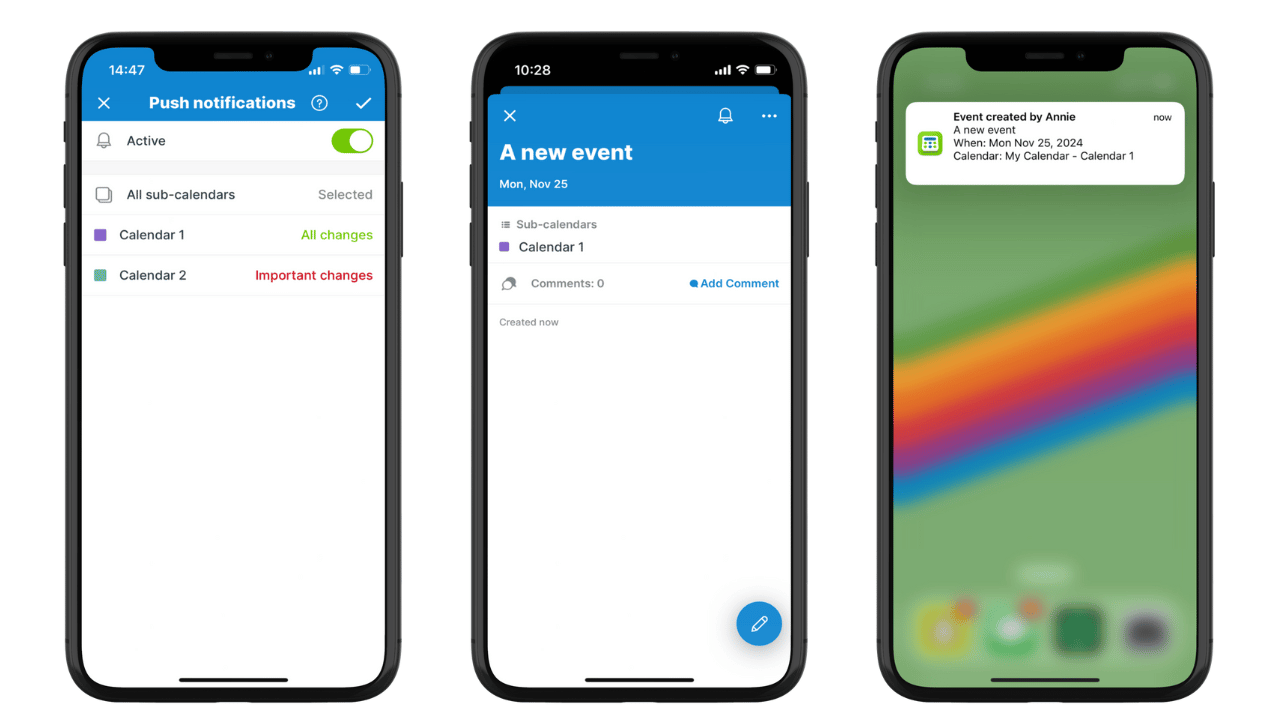
- Open the calendar in the Teamup app, then swipe to open the left sidebar.
- Tap the gear icon.
- Tap Change notifications.
- Tap Push notifications.
- Tap the toggle to make push notifications active.
- Set the options as desired.
- Tap the check mark (top right).
Set up push notifications on a browser
- Ensure that you are logged into your Teamup user account.
- Open your calendar.
- From the blue menu (top right), select Preferences > Change Notifications.
- Your browser may show a pop-up requesting permission to allow notifications. Choose Allow (or Continue) to enable them.
- Click Enable to create a token for your browser. (This may happen automatically when you choose Allow on the browser pop-up.)
- In the Active section, if the toggle displays X/red, toggle it to √/green.
- In the What section, use the menu beside All sub-calendars to set one notification type for all calendars. Use the menu beside a sub-calendar name to set the notification type individually for the selected calendar.
- Set the notification type: All changes, New events, Important changes, or None.
- All changes: New events, deleted events, and any changes to an event including event comments and event signups.
- New events: A new event is created.
- Important changes: New events, deleted events, date and time changes.
- None: No notifications.
- Once your preferences are set, click Save.
See also how to manage push notifications.
push, notifications, alerts, change notifications, mobile, browser