
Teamup Ticker
How to import data into existing sub-calendars
Wed 10 Dec 2025
.Ticker > Tips / Support Nuggets
When importing data via CSV file, you can either import into a new calendar or import into an existing sub-calendar(s). Here's how to set up the import so the data goes to one or multiple existing sub-calendars.
Import data to one existing sub-calendar
To import data into a single existing sub-calendars, specify the sub-calendar name during the import process:
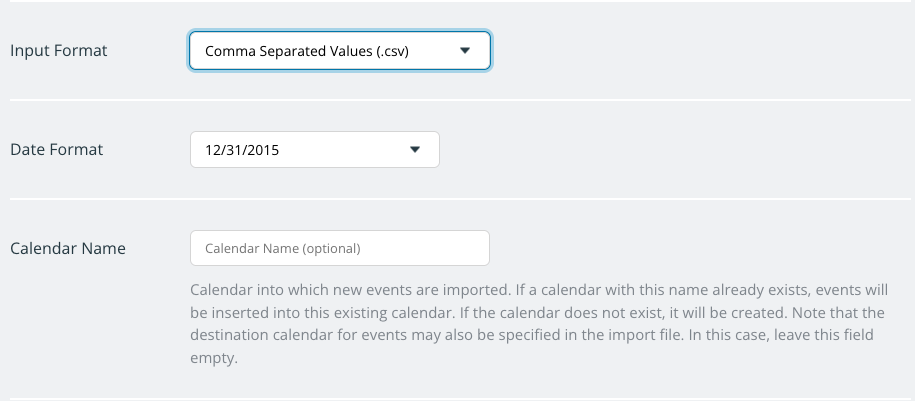
- Go to Settings > Import Events.
- For the Input Format, choose Comma Separated Values.
- Set the Date Format to match the one used in your CSV file.
- In the Calendar Name field, type in the existing sub-calendar name. This field is case sensitive, so double-check that you type the calendar name correctly.
Import data to multiple existing sub-calendars
To import events to multiple existing sub-calendars, use this method:
- In the CSV file to be imported, add a column labeled "Calendar Name".
- Enter the sub-calendar name into this column for each row. The sub-calendar name in this column must match the name of the existing sub-calendar exactly.
- Import the file into your Teamup Calendar. When importing, leave the Calendar Name field blank.
Imports cannot be undone. It's a good idea to try things out with a test calendar first. You can use one of our Live Demo calendars to test your data/format before importing into your actual calendar.
import, CSV, data, sub-calendar, calendar name, label, title, events