
Teamup Ticker
How to work with sub-calendars
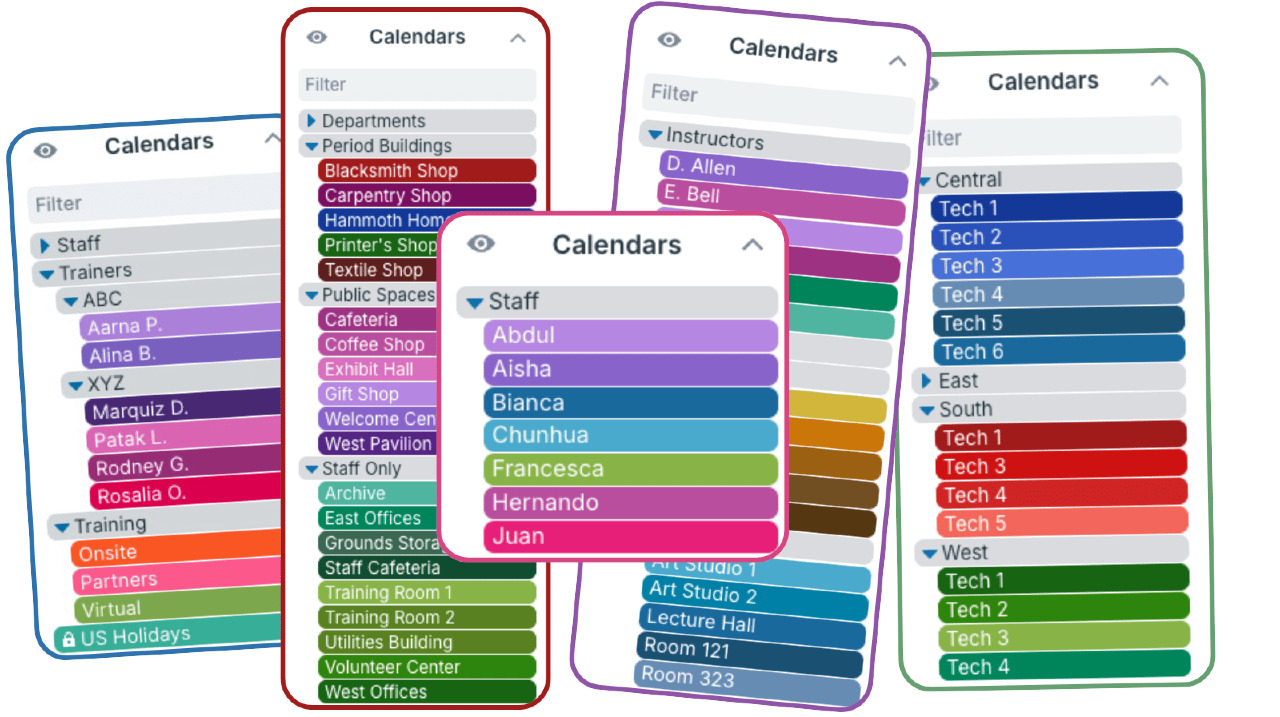
Sub-calendars are the heart of a Teamup calendar. They work as individual calendars, but are contained within your master calendar. They allow you to sort and organize all the information you need to keep on the calendar in a color-coded, visual structure.
Get started with these interactive demos:
Set up sub-calendars
▶️ Interactive demo: Only the calendar administrator can create, organize, and manage sub-calendars.
Use nested folders
▶️ Interactive demo: Use > in sub-calendar titles to set up folder organization.
Disallow overlapping events
▶️ Interactive demo: In the main calendar settings, you can set each sub-calendar to allow or disallow overlapping events.
Toggle on and off from view
▶️ Interactive demo: When using the calendar, any individual sub-calendar can be toggled to show or hide its events. Collapse (hide) or expand (show) a folder to toggle all the sub-calendars organized inside it.
Control access
▶️ Interactive demo: Review who has access to any sub-calendar and adjust access permissions as needed.
Deactivate or delete sub-calendars
▶️ Interactive demo: Deactivating a sub-calendar archives it; deleting a calendar removes it (and all its data) permanently.
Get started with sub-calendars
Explore more with a live demo calendar. Live demo calendars have all features enabled so you can try different setups and explore the possibilities without commitment. When you’re ready, create your own Teamup calendar.