
Teamup Ticker
What to check if you are missing events
If you are not seeing events that should be on your calendar, here's what to check:
Missing single events or sporadically missing events
Check access levels for all users.
When events randomly go missing from the calendar, it is likely due to users who have inadvertently deleted them. These users may need to have their permission adjusted so that they cannot delete or modify events, or are limited to doing so on certain sub-calendars.
👩💻 Calendar admins: Review all active users and shared calendar links. Here's how to review and modify user access.
- Check the level of access assigned to each user. Adjust if needed. If someone only needs to view events on a sub-calendar, give that person read-only access to prevent unauthorized deletions or changes.
- Only share the sub-calendars that each user needs to access.
- Delete or deactivate old links if you are not sure who has them.
- Replace calendar links with account access for better security.
Set up email notifications.
You can subscribe to change notifications by email and receive an email every time a change occurs on your calendar, including deletion of events. This can help you track down who is deleting events and make the appropriate changes to calendar permissions.
Missing events from the past
If you are missing all events that are a year or more in the past, these events are gone due to historical data limits. Each subscription plan has a certain limit on the amount of historical data that is accessible from the calendar.
- Basic (free) plan: 1 year of historical data. Past events older than one year become inaccessible on a rolling basis. So events that occurred more than a year ago will not show up on your calendar.
- Paid plans: See details as stated on our Pricing page.
To access historical data past your current limit, upgrade the calendar's subscription. Once you upgrade, the historical data will be restored to the calendar and accessible up to the increased limit of the upgraded plan.
Missing all events from certain sub-calendar(s)
Check that all sub-calendars are toggled on so their events are visible.
Calendars can be toggled off or on from view temporarily, via the sidebar. This is possible both on a browser and on Teamup mobile apps. Check the sidebar and be sure the calendars are all toggled on so that their events are visible.
Check the calendar link or account you are using to access the calendar.
If you have opened the calendar on someone else's computer, you may be logged into their account and only able to see the sub-calendars they have access to. Or if you are using a shareable calendar link rather than logging into your account, or using a different calendar link than usual, you may not be able to view all sub-calendars that you can normally access.
Look in the upper right hand corner of the calendar to see the name of the account user or link: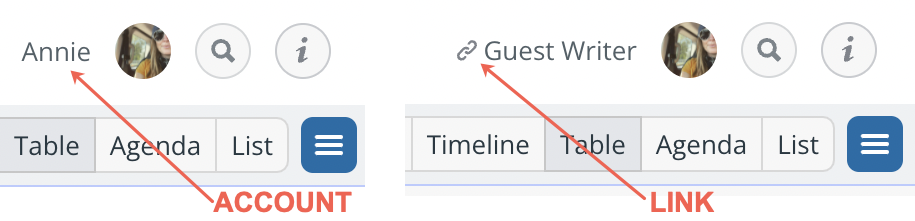
Check that the sub-calendar is still active.
It's possible that a person with administrator access has inadvertently deactivated the sub-calendar.
👩💻 Calendar admins: Go to Settings > Calendars and find the relevant sub-calendar on the list. If the toggle beside it is red, it has been deactivated. Click the toggle to reactivate.
If you no longer see the sub-calendar in the calendar list, it may have been deleted. Contact the support team for help.
Check your calendar subscription.
Each subscription level has an allowed number of sub-calendars. If payment fails on a subscription renewal, your calendar will be downgraded to the Basic (free) plan automatically. At that point, any sub-calendars over the limits of the free plan will be deactivated. As soon as payment is successfully made, these sub-calendars will be available again.
👩💻 Calendar admins: Go to Settings > Subscription to view invoices and billing details.