
Teamup Ticker
Split one master calendar into two master calendars
Thu Sep 24, 2026
.Ticker > Tips / Support Nuggets
When you create a Teamup calendar, you’re creating a master calendar. That master calendar can contain many sub-calendars.
In many cases, one master calendar is sufficient for managing your organization which may have multiple teams, properties, projects, or events.
- You can add many sub-calendars, organize them in folders, and use color-coding, custom event fields, and other features to customize your calendar for what you need. See our guide: When to use one big master calendar.
Sometimes a single master calendar, even with many sub-calendars, is not the right fit. Multiple master calendars work better, for example, when an organization has separate locations, and each location needs a separate, independently managed calendar.
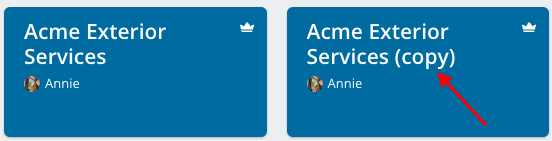
If you started with one master calendar and now want to use two separate master calendars, here's how to "split" that calendar and import needed data to the new secondary master calendar.
- Duplicate the current master calendar. This will copy the sub-calendar structure and basic configuration across to a new master calendar. Event data and users will not be copied. Calendar administrators can duplicate a calendar from the calendar settings. → Duplicate a Teamup Calendar
- If needed, upgrade the new master calendar to an appropriate subscription plan to accommodate the sub-calendars, custom fields, and data requirements.
→ Upgrade a Calendar's Subscription - Export the relevant from the original master calendar to a csv file. You can choose which sub-calendars to export from and set the date range. You'll import this data into the new master calendar
→ Bulk Export Calendar Data via CSV - Create a Live Demo calendar and import the CSV file into it. This is to test out the process before importing into the new master calendar. Imports cannot be undone.
→ Importing Data in CSV Format - When you are happy with the results, import the data into the new calendar that you have created.
→ Import Data from One Teamup Calendar to Another
Related resources:
master calendar, separate calendars, structure, organization, locations, split calendars, data, import, duplicate