
Teamup Ticker
Customize a calendar printout with link parameters
You can easily create your own custom printable Teamup calendar.
There are three easy ways:
- Use the Teamup printable calendar widget
- Use a live demo calendars
- Or use your own Teamup calendar
Once you have the blank calendar displayed on your screen, you can still make adjustments before printing your customized blank calendar: Just append link parameters to the printable calendar URL.
What are link parameters?
Calendar link parameters are key=value pairs that are appended at the end of a calendar URL. When you add a link parameter, it forces the calendar to load according to the value of that parameter. The link parameters will override the default settings but only for the link with the parameters added.
For example, a calendar may have defaults to open on the current date and in Week view. You can use a date parameter so the calendar loads on a different start date and a view parameter so the calendar loads with a different view:
https://teamup.com/ks09175eafc7c69bf8?date=-1week&view=s
Using link parameters on a printable calendar
When you create and open a blank calendar, check the browser's address bar. The calendar's URL will be shown. It already has link parameters which determine how the calendar is displayed. You can modify these parameters to adjust how the blank calendar appears before printing or saving.
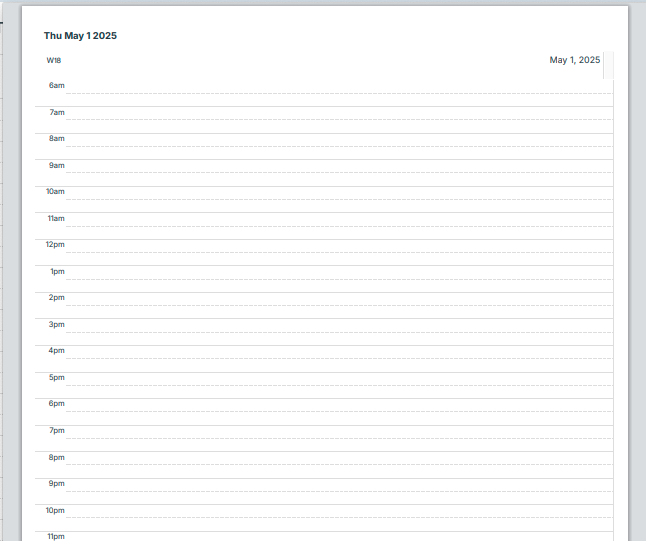
For example, as shown above, you could use the show header parameter to hide the header and print the calendar without a title.
Or use the title parameter to create a custom title for each printout, like "First Quarter" and "Second Quarter."
Take a look at the available link parameters to see more options and examples.