
Teamup Ticker
How to quickly copy events
Wed Jun 3, 2026
.Ticker > Tips / Support Nuggets
Copying an event allows you to move it to a different date/time (or creates a copy at the same date/time).
This is handy when a booking moves to a different room, a job gets reassigned to another crew, or a task needs to appear on a second team's schedule.
You can copy or duplicate an event using the context menu or drag-and-drop.
Copy from the context menu
- Right-click an event and select Copy to.
- On the pop-up date picker, click the date you want the new event to be on.
Copy via drag-and-drop
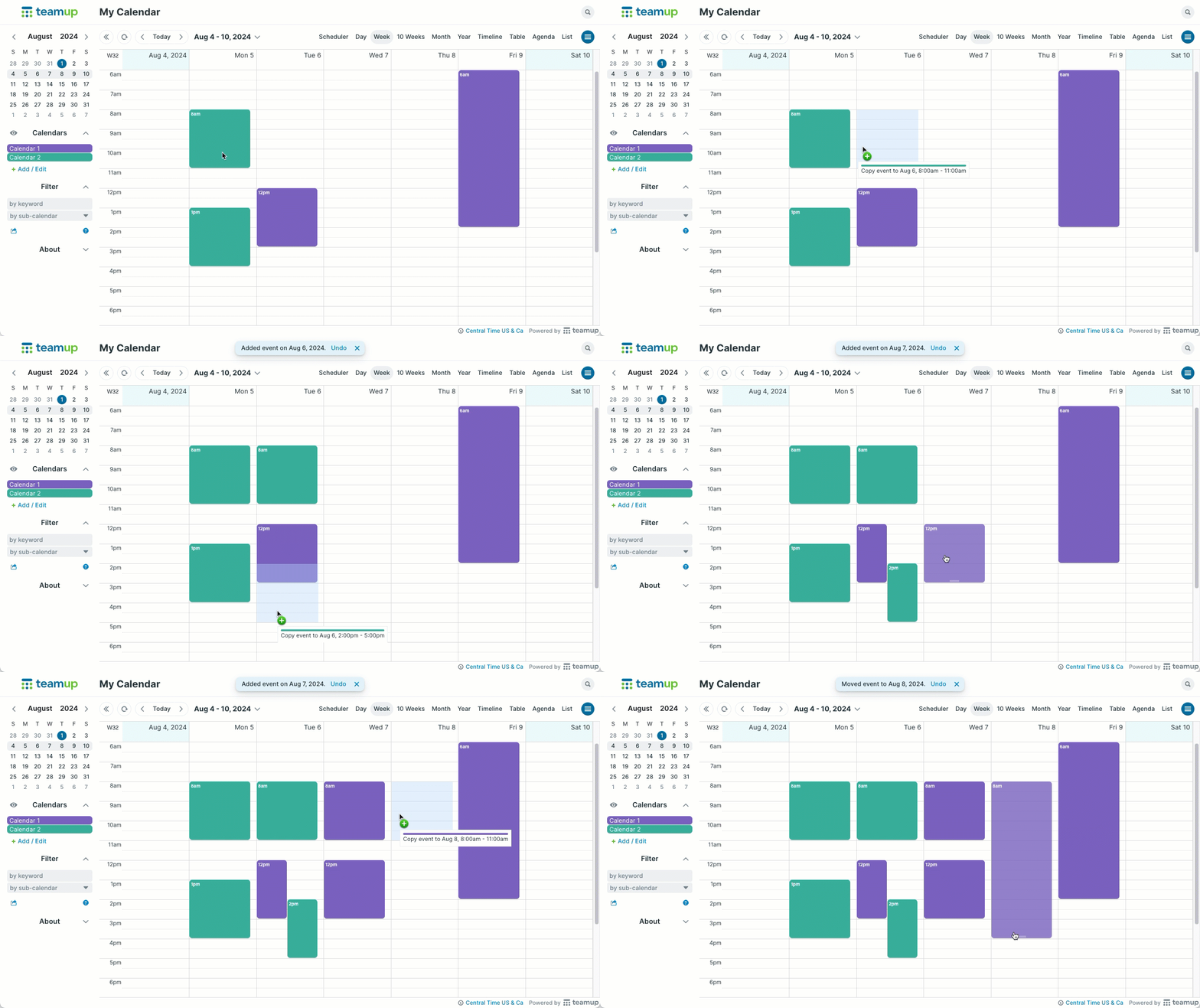
On any of the calendars with a grid view (e.g. Day, Week, Multi-day, Scheduler, and Timeline), use CTRL + drag (PC) or OPTION (Alt) + drag (Mac) to copy an event to a different time/date.
- Hold down the CTRL (PC) or OPTION (Mac) key.
- Use the mouse to drag any event to a different date/time.
- Release the mouse and the key.
- The original event will be copied where it was dragged.
copy, drag, move, copy events, shortcuts