Teamup Ticker
Adjust the preset event duration
Whenever you create a new event, the event duration (the amount of time the event covers from beginning to end) will be prefilled with the default event duration or as an All-day event.
You can always edit the duration of an individual event. However, if you're going to create multiple events of the same duration, it's faster to have the duration you need pre-filled in the event editor.
How to adjust the prefilled event start and end time
To create multiple events with the same predetermined event duration, like 30-minute meetings, use a calendar view with an hourly time grid, and adjust the calendar resolution as needed.
When you click into the time grid to create an event, the event editor will be preset with the default event duration (e.g. one hour, 15 minutes).
Any user can adjust the prefilled event duration (for that browser session) by changing the calendar resolution. If the default event duration is 60 minutes and you want to create multiple 30-minute meetings, change the resolution to 30 minutes. Then click into the calendar to create events which will automatically have a 30-minute duration.
- Open Teamup in a browser.
- Click the blue menu button in the top right and select Calendar Resolution.
- Choose the preferred resolution, from 5 minutes to 60 minutes.
Note: When using Scheduler and Timeline view, the resolution is adjusted with the calendar view controls (above the calendar).
Get a prefilled All-day event duration
When you click to create an event in calendar views without a time grid (Agenda, List, Month, etc.), the event will default to all-day.
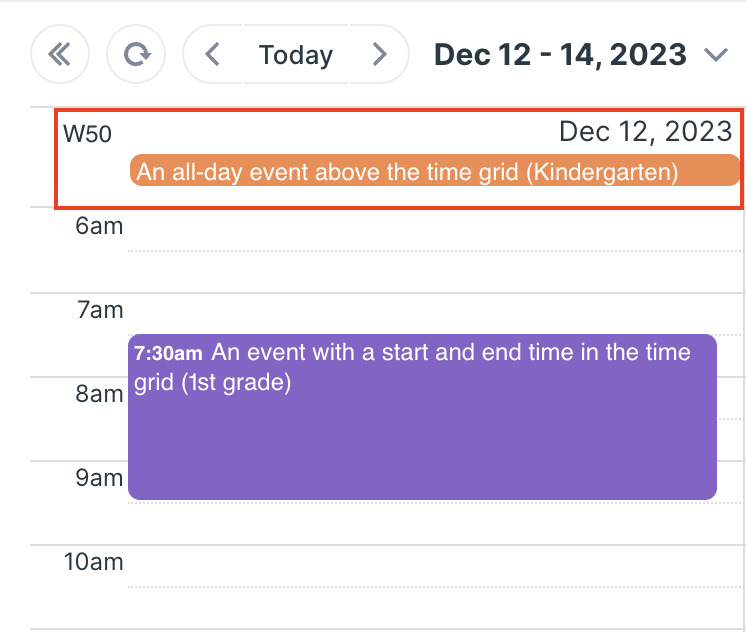
For calendar views with a time grid (Day, Week, Scheduler, etc.), if you create an event by clicking above the time grid, the event will default to all-day.