
Teamup Ticker
▶️ How admins can set up email notifications
Mon Dec 29, 2025
.Ticker > Interactive Demos
Interactive demo: How admins set up a email notifications for users
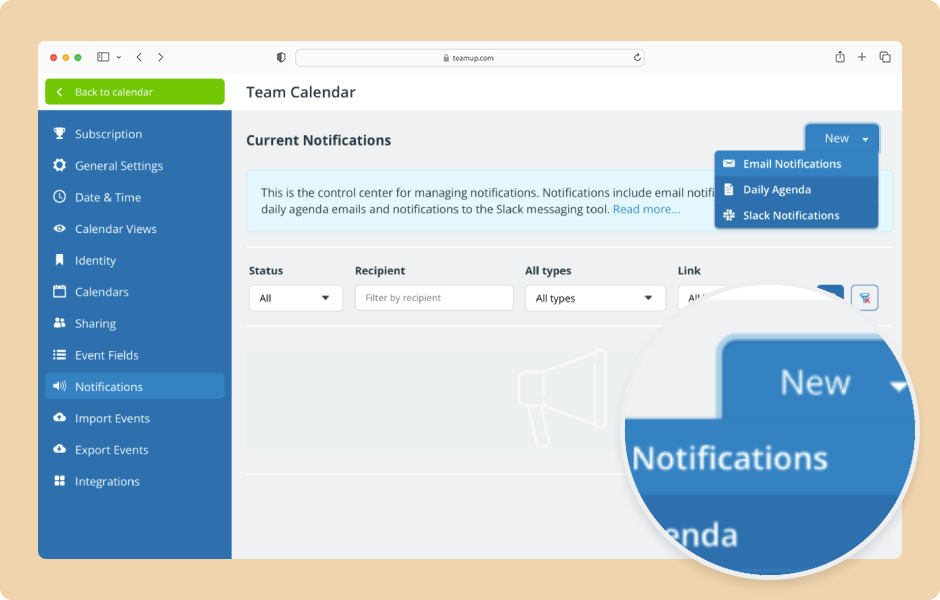
Calendar administrators can set up email notifications for calendar users or others. Select delivery timing and which changes will trigger notifications.
Access level required: Administrator
- Open Teamup in a browser.
- Click the blue menu (top right).
- Select Settings.
- Go to the Notifications tab.
- Click New (top right).
- Select Email Notifications.
- Click the dropdown menu to type in an email address or select from the list of users.
- For someone who is not a user:
- Type in the email address.
- Press Return or click to confirm.
- Click Continue.
- For someone who is a user:
- Click into the field to show the list of users.
- Start typing the email address to narrow down the list.
- Press Return or click to confirm.
- Click Continue.
- On the next screen, configure the notification settings.
- Select the appropriate time zone.
- In the When section, select Immediately or Daily Summary for delivery.
- In the What section, use the menu beside All calendars to set one notification type for all calendars.
- Or use the menu beside each calendar name to set the notification type individually for the selected calendar.
- Notification types include None, All changes, Important changes, New events, and Comments. More details.
- When you've finished configuring notifications, click Save.
- The new subscription will appear in the list of Current Notifications.
ℹ️ Learn more
notifications, email, subscription, change, emails, agenda