
Teamup Ticker
How to update the email address for notifications
Wed 3 Dec 2025
.Ticker > Tips / Support Nuggets
Calendar administrators can set up and manage notifications for any calendar user with or without a Teamup user account.
Here's what to do if you've set up a notification subscription and the recipient's email address has changed.
Teamup account users: Your primary account email is used for notification subscriptions. You can change your account email in your user profile.
Calendar admins: It's not possible to edit the email address of a notification subscription. Instead, you'll simply delete the old subscription and set up a new one with the correct email address. Be sure to choose an appropriate link for the subscription.
- Open Teamup in a browser.
- Go to Settings > Notifications.
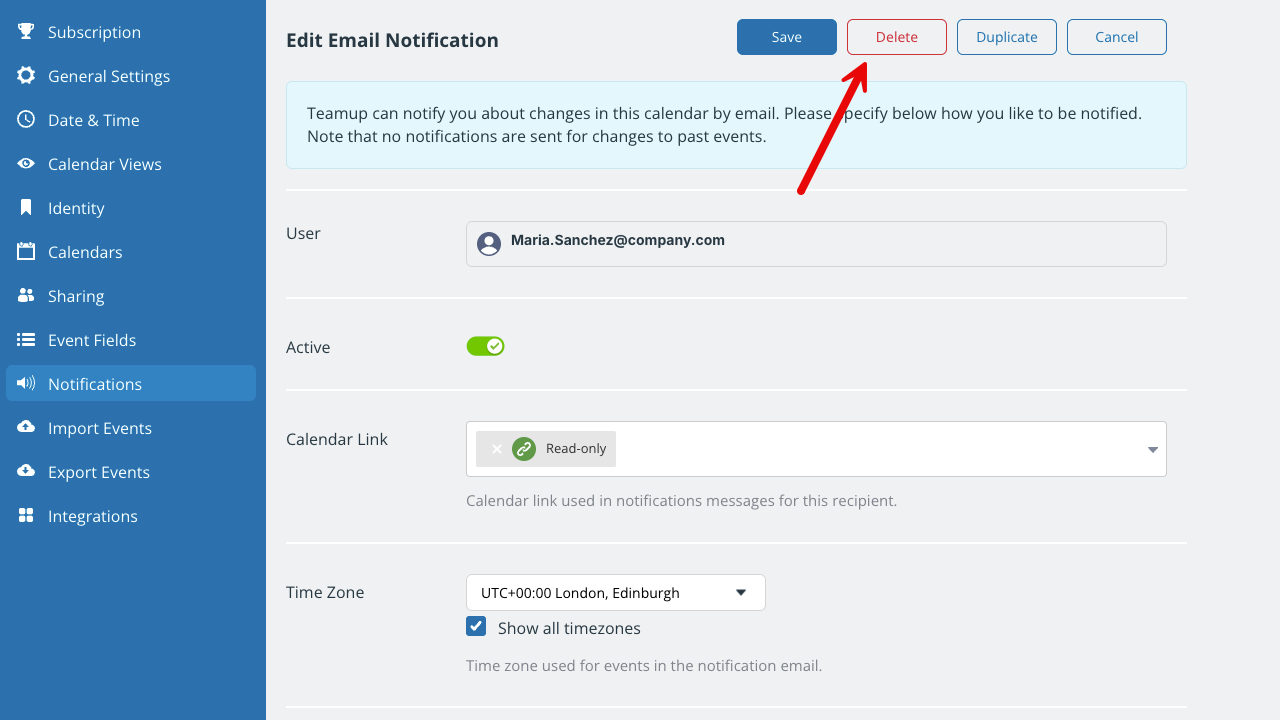
- Locate the subscription in the list and click to open the details. Take note of the settings (time zone, calendars included, notification type).
- Click the red Delete button at the top of the screen. Confirm the deletion on the next screen.
- On the main Notifications screen, click the blue New button and select the notification type.
- Enter the recipient's correct email address and click Continue.
- Configure the notifications as needed, then Save.
notification, subscription, change, updates, email, user