
Teamup Ticker
What to check if push notifications don't work
If you set up push notifications but aren't receiving the notifications as expected, here's what to check:
Mobile push notifications are device-specific
You can set up push notifications on your phone through the Teamup app. But setting up push notifications on one phone does not enable push notifications on other phones or mobile devices. Push notification setup is specific to each device. So if you set up push notifications on one device, then switched to a different phone, you will not receive notifications on the second phone. You'll need to set up push notifications again, on that phone. Follow these steps to do so.
What to check:
- On the phone where you want to receive push notifications: Open the Teamup app and open the calendar.
- Swipe to open the left sidebar.
- Tap the gear icon to open app settings.
- Tap Change notifications.
- Tap Push notifications.
- If the toggle is red, push notifications are NOT active on that device. Tap the toggle to turn on push notifications.
- Adjust notification preferences as needed, then tap the checkmark in the top right.
Check all active change notifications
On a browser, you can view all active notification subscriptions for your user account.
- Log into your Teamup user account.
- Click your profile image/avatar in the top right to open the user menu, then click Notifications.
- You will see a list of all active notification subscriptions for your user account. Each active notification will have options to Unsubscribe or to Change your preferences.
- If you don't see an active notification subscription for a certain calendar as expected, follow these steps to set up push notifications for that calendar.
Calendar admins: Check notifications in the settings
The calendar admin can view all notification subscriptions and see which devices are subscribed to push notifications:
- Open Teamup in a browser.
- In the calendar, click the blue menu (top right) then select Settings.
- Go to the Notifications tab.
- The Notifications screen will show a list of notification subscriptions. Click the edit icon to see the details for any push notification subscription:
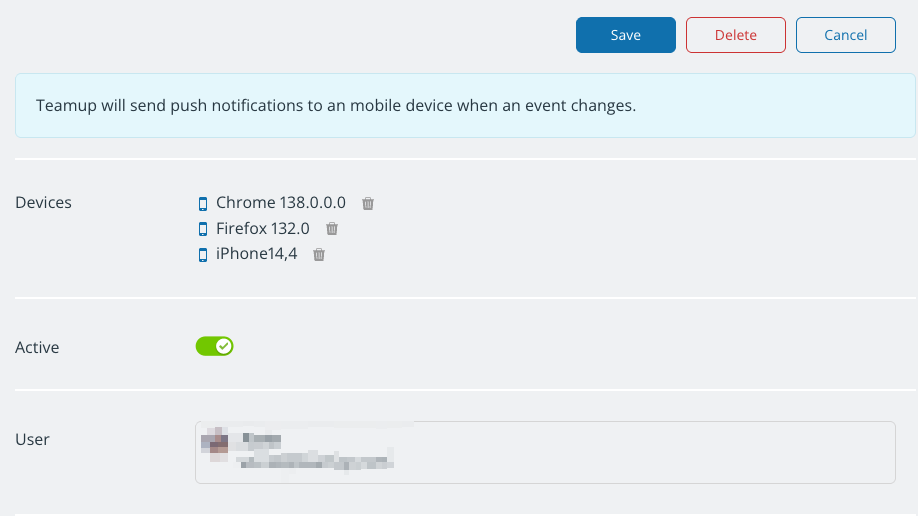
Delete and resubscribe
If you've checked the device settings and/or the administrator has checked the Notifications details to confirm that there is an active push notification subscription for your device, you may need to delete the active subscription and set up a new one.
- In the device settings, turn off the active push notifications.
- Alternately, have the administrator delete the push notification subscription for the user in the calendar settings.
- Resubscribe to push notifications on the device or browser where you want to receive them.
- The administrator can check Settings > Notifications to confirm that the new subscription is active.
If you've followed these steps and still are not receiving push notifications as expected, please contact our support team for help. Email us: support@teamup.com. Please include the calendar title, any calendar link(s) you may have, and details about the device/browser you are using.