
Teamup Ticker
Check your current notification subscriptions
With a Teamup account, you can set up change notifications, daily agenda emails, and event reminders.
Here's how to see what notifications you currently have set up.
On a browser
Check change notifications (email), change notifications (browser push), daily agenda subscriptions, and event reminders.
- Log into your Teamup account on a browser.
- From a calendar or your dashboard, click your profile image to open the user menu.
- Click Email Notifications.
- A page will open showing your subscriptions to change notifications (email/browser) and daily agendas as well as any event reminders.
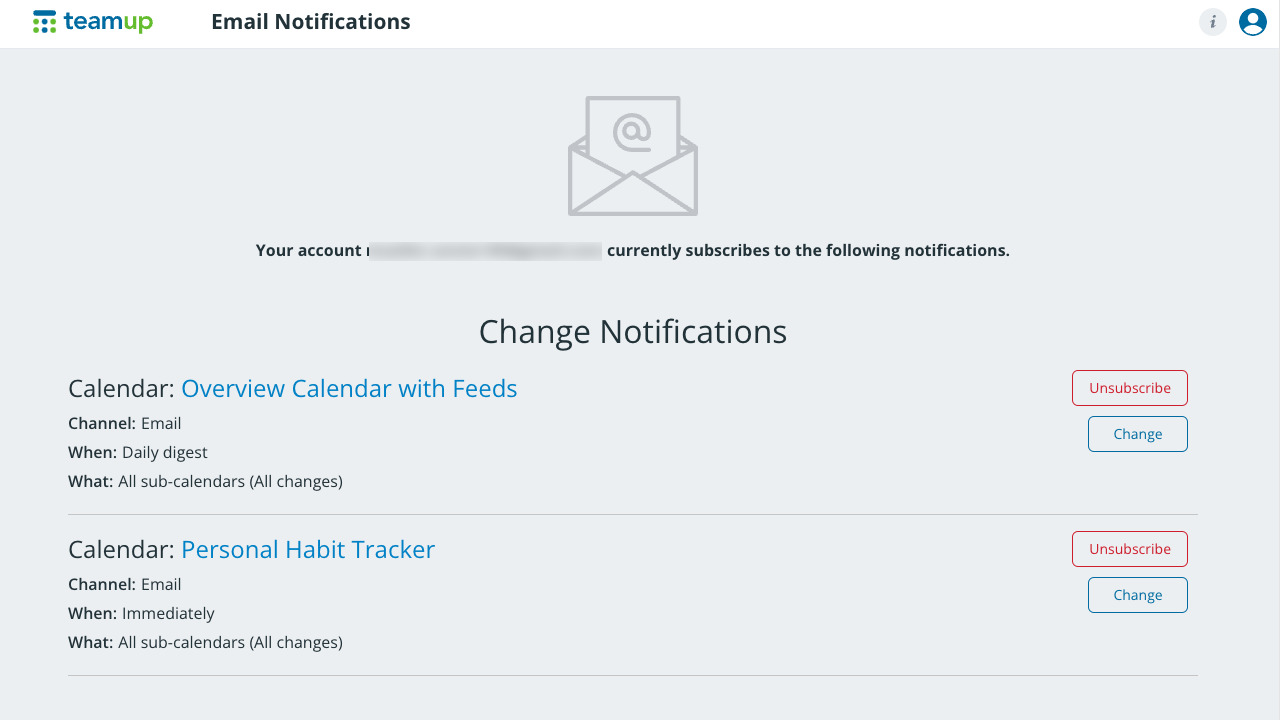
You can Unsubscribe from a subscription or Change the notification settings via the buttons next to each subscription.
If you don't have any active notification subscriptions, the page will state that your account does not currently subscribe to any notifications.
On the Teamup app
Check per-calendar mobile push notifications and email notifications
If you set up push notifications on your mobile device, you can view and manage them in the Teamup app. Note: On the Teamup app, the Change notifications will show notification subscriptions you have for the calendar currently open in the app. To view mobile push (or email) notifications for a different Teamup calendar, first open it in the app.
- Open the Teamup app.
- From the dashboard, open the calendar you wish to check for notifications.
- Swipe to open the left sidebar.
- Tap the gear icon to open app settings.
- Tap Change notifications.
- Tap Push notifications to see any active push notifications for that calendar.
- Tap Email notifications to see any active email notification subscriptions you have for that calendar.
- Adjust your preferences as needed then tap the check mark (top right).
- Or, to unsubscribe: Tap the Active toggle to off/white to deactivate the change notifications.
- Tap the check mark.